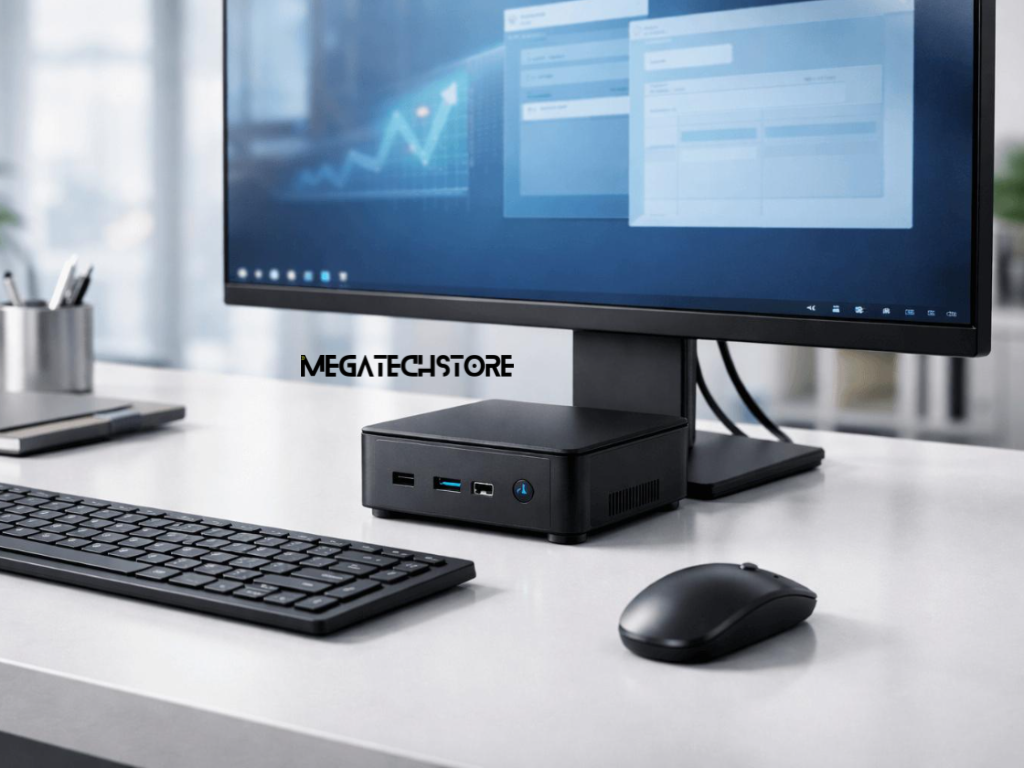
Choosing the right mini PC involves more than comparing processors and prices. RAM and SSD storage are two important specifications that influence how well a compact computer handles everyday tasks, multiple applications and saved files. For Australian buyers, understanding these differences can help avoid spending too much on unnecessary specifications or choosing a computer that struggles with their workload.
An 8GB mini PC may be suitable for basic computing, while 16GB or 32GB can provide additional room for multitasking and demanding applications. Storage requirements also vary depending on how many programs, documents, photographs and other files you need to keep.
This guide explains how RAM and SSD storage work, when higher capacities are useful and what to check before buying or upgrading a compact computer.
What Is the Difference Between Mini PC RAM and Storage?
How Mini PC RAM Affects Everyday Performance
RAM, or random access memory, temporarily holds information that your computer needs while running applications.
When you open a browser, spreadsheet or video meeting application, the system uses RAM to manage active processes.
Having enough memory helps a mini PC switch between applications without constantly relying on slower storage.
For example, someone working with multiple browser tabs, documents and communication tools may need more RAM than a person who mainly checks email.
If available memory becomes insufficient, the computer may slow down as it moves information between RAM and storage.
However, increasing RAM will not automatically solve every performance problem.
Processor speed, graphics capabilities, software requirements and cooling also influence how a computer performs.
What SSD Storage Does in a Compact Computer
Unlike RAM, SSD storage keeps information even when the computer is switched off.
An SSD stores the operating system, installed applications, documents, photographs and other files.
Common mini PC configurations include 256GB, 512GB, 1TB and 2TB SSD options.
The appropriate capacity depends on how much information you need to store locally.
Storage performance also matters. Different SSDs have different interfaces and read/write capabilities.
A larger SSD does not necessarily operate faster simply because it offers more capacity.
Understanding this distinction helps buyers choose memory for active workloads and storage for saved information.
Is 8GB, 16GB or 32GB RAM Better for a Mini PC?
Choosing 8GB or 16GB RAM for Everyday Computing
For basic activities, an 8GB mini PC may be sufficient.
Tasks such as email, light web browsing, document editing and occasional video calls generally require less memory than demanding professional software.
However, modern applications can use substantial RAM, particularly when several programs are open simultaneously.
For many Australian students, home users and office workers, 16GB offers a practical starting point.
It provides additional room for browser tabs, productivity applications, video meetings and routine multitasking.
This can be useful for people working with Microsoft 365, online business systems and multiple documents.
Before purchasing, check the recommended memory requirements of your operating system and frequently used applications.
A computer’s processor and overall configuration should also be considered.
When 32GB or More Memory Makes Sense
Some activities benefit from having substantially more RAM available.
Examples include working with large spreadsheets, running virtual machines, software development and selected creative applications.
A 32GB mini PC may provide useful headroom when several demanding programs operate together.
Higher capacities may be appropriate for specialised workloads, including certain data processing and local AI applications.
Integrated graphics can also use shared system memory, which affects how available RAM is allocated.
However, most everyday users do not need the largest available memory configuration.
The best approach is to review actual software requirements and expected multitasking rather than assume more RAM always means better value.
How Much SSD Storage Should Your Mini PC Have?
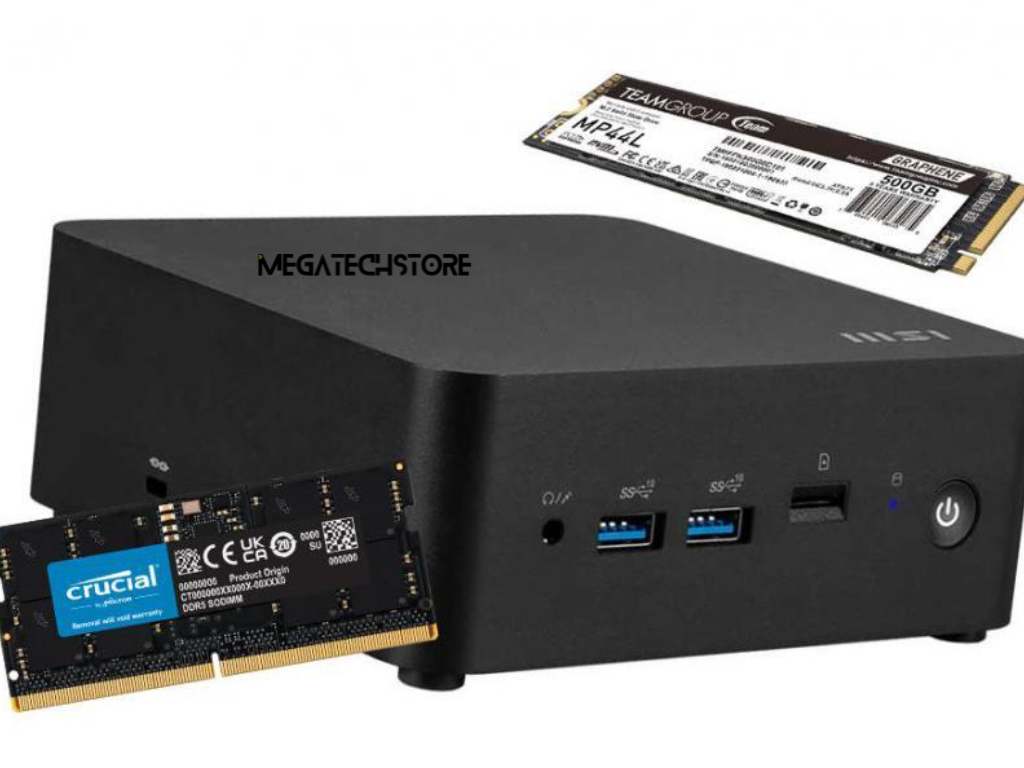
Comparing 256GB, 512GB and 1TB SSD Options
A 256GB SSD may be suitable for basic computing when most documents are small or stored through online services.
However, the operating system, updates and installed applications all consume space.
A 512GB SSD provides additional capacity for everyday software, personal documents and moderate file collections.
For many students and office users, this may offer a reasonable balance between storage space and cost.
A 1TB SSD can be useful when storing larger photo libraries, work files, applications or downloaded content.
Remember that the usable capacity displayed by your computer will be lower than the advertised capacity because of formatting and differences in measurement.
When selecting a mini PC, consider both current files and how much additional storage you may need.
When Larger SSDs or External Storage Are Useful
Some computer users work with files that consume significant storage space.
Video projects, high-resolution photographs, virtual machine files and large software installations can quickly fill smaller drives.
A 2TB SSD or additional storage drive may be worthwhile for these activities.
External SSDs can provide extra capacity without requiring an internal upgrade.
Network-attached storage and cloud services may also suit users who need shared or remotely accessible files.
However, keeping files in the cloud does not automatically provide a complete backup strategy.
Important information should be protected through appropriate backup arrangements.
Before purchasing a larger SSD, consider whether your priority is keeping more files locally, improving storage performance or maintaining reliable access to your data.
Can You Upgrade Mini PC RAM and SSD Storage?
Understanding Soldered and Replaceable Memory
Not every mini PC allows users to increase the installed RAM.
Some models use memory soldered directly to the motherboard.
This arrangement is common in certain compact systems using LPDDR memory.
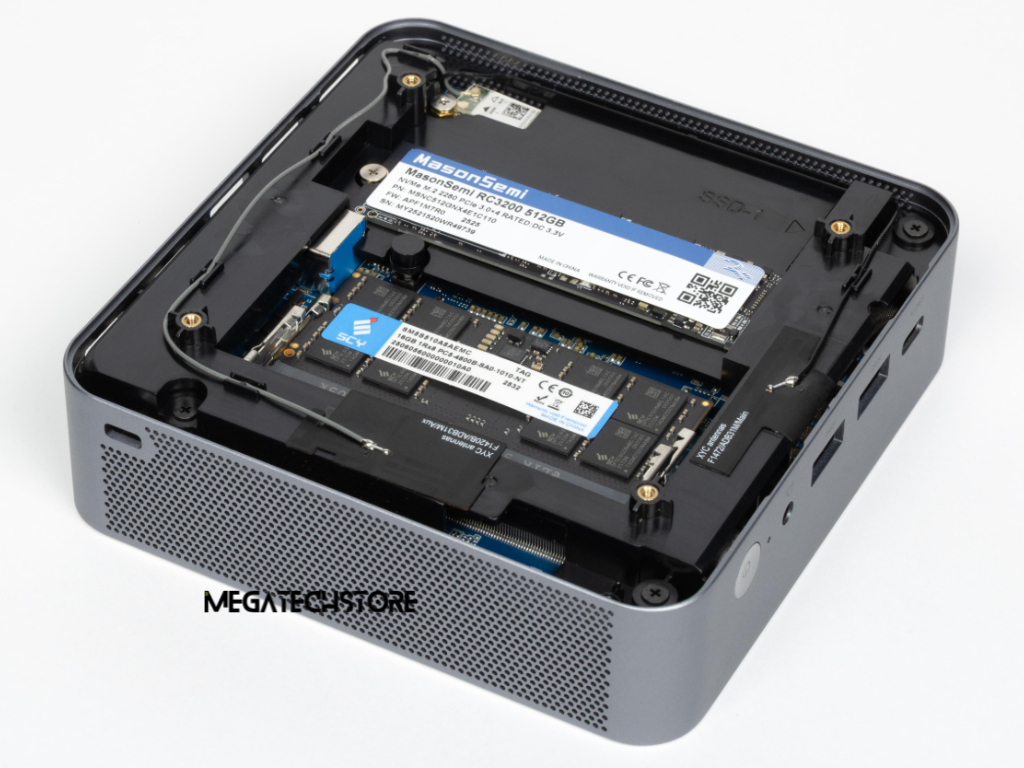
Other computers include removable SO-DIMM modules that may be replaced with compatible higher-capacity memory.
The difference matters because soldered RAM generally cannot be upgraded after purchase.
Even when memory slots are available, the system may have limits on supported capacity, memory generation and module specifications.
DDR4 and DDR5 memory modules are not interchangeable.
Buyers should check the exact manufacturer’s documentation before assuming a mini PC supports future memory upgrades.
Choosing sufficient RAM at purchase is particularly important when the memory is fixed.
Which Mini PC Parts Can Be Upgraded?
Commonly replaceable mini PC parts may include RAM modules and internal SSDs, depending on the model.
Many systems use M.2 SSDs, but the physical size and supported interface can vary.
For example, an M.2 NVMe SSD uses a different storage protocol from certain M.2 SATA drives.
A device may support one type but not the other.
Some mini PCs include additional storage slots, while others require replacing the existing drive.
Before buying components, check the supported SSD dimensions, capacity limits and available connections.
It is also worth reviewing warranty conditions and installation instructions.
Customers unfamiliar with computer hardware should seek suitable technical assistance rather than risk damaging internal components.
How Do Minisforum and MINIX Models Compare?
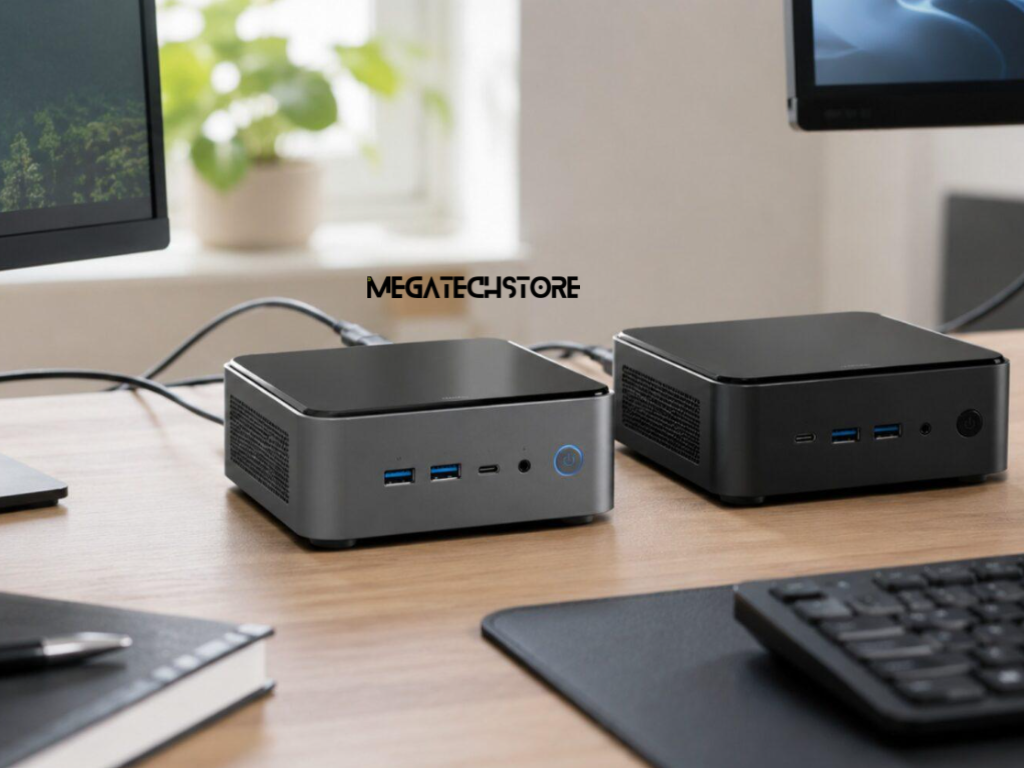
Minisforum Australia: Understanding Different Configurations
Minisforum produces compact computers designed for different computing requirements.
Some models focus on everyday productivity, while others target professional workstations, gaming or demanding applications.
Customers researching minisforum australia should compare the exact configurations rather than rely on brand names alone.
A minisforum pc may be offered with different processors, RAM capacities and SSD options.
Certain models support removable memory and storage upgrades, while others may have more restricted configurations.
Some systems are also available as barebone models, meaning RAM, storage or an operating system may need to be supplied separately.
Before ordering a Minisforum computer, confirm what is included and whether additional components are required.
Australian buyers should also review warranty arrangements, delivery options and current product availability.
MINIX ER939-AI Pro: A Higher-Memory Workstation Example
The Minix ER 939 AI Pro, officially identified as the MINIX ER939-AI Pro, illustrates how some compact computers are designed for specialised workloads.
The manufacturer’s published configuration includes an AMD Ryzen AI Max+ 395 processor, 128GB LPDDR5X memory and a 2TB NVMe SSD.
Its memory is onboard, with no conventional removable DDR memory slots.
This means buyers should not assume the RAM can be upgraded using standard SO-DIMM modules.
The system is designed for more demanding computing requirements, including selected professional and local AI applications.
However, such a large memory configuration is unnecessary for many everyday office tasks.
The relevant comparison is whether the software you intend to use can benefit from the hardware.
Customers should verify the exact model, operating system, storage expansion options and available configuration before purchasing.
How Do You Choose the Right Mini PC for Your Needs?
Matching RAM and Storage to Your Daily Tasks
The right mini PC depends on what you plan to do with it.
A student using online learning platforms, documents and web applications may be comfortable with 16GB RAM and a moderate SSD capacity.
A home-office worker using spreadsheets, video meetings and multiple business applications may also find 16GB suitable.
Someone running software development tools, virtual machines or demanding creative applications may benefit from 32GB or more.
Storage needs should be considered separately.
Users who mainly access cloud-based documents may require less local space than people storing large media libraries.
Processor performance, integrated graphics, cooling and operating system compatibility also matter.
Buyers should check the software they use most frequently before choosing a configuration.
Comparing Australian Retailers and Product Specifications
When buying a mini PC, compare products using their complete specifications.
Check the processor model, installed RAM, SSD capacity, operating system and display connections.
Also review networking options, USB ports and whether the system includes necessary accessories.
For future flexibility, determine whether RAM and storage are upgradeable.
Australian customers should consider warranty coverage, delivery arrangements and applicable consumer guarantees.
MegatechStore offers mini PCs and related computer products, including Minisforum and MINIX models.
Customers can review available configurations and compare their specifications before deciding which computer meets their requirements.
It is important to confirm current stock, included components and compatibility rather than assume all models offer the same features.
What Should You Check Before Buying a Mini PC?
Reviewing Memory, Storage and Connectivity
Before purchasing a mini PC, make sure its specifications match your intended workload.
Check the installed RAM and whether additional memory can be fitted later.
For SSD storage, confirm the capacity, drive type and whether the computer has an available expansion slot.
Review the operating system and determine whether your required software is compatible.
Monitor connections are also important, particularly if you use two or more displays.
Check USB ports, Wi-Fi, Ethernet and any specialist connections required by your peripherals.
Some compact computers are sold without a monitor, keyboard or mouse, so these may need to be purchased separately.
Always review the specifications of the exact product variant before ordering.
Planning for Future Computing Requirements
Buying a mini PC involves balancing present needs with reasonable expectations for future use.
An entry-level configuration may be sufficient for basic office work, but it could become limiting if your workload changes.
A higher-memory configuration may be worthwhile when you expect to run demanding applications.
Similarly, extra SSD capacity can be helpful when your local file collection is likely to grow.
However, spending more on specifications that you are unlikely to use does not necessarily improve value.
Upgradeability should also influence your decision.
A computer with replaceable RAM and storage may provide more flexibility than one with fixed components.
For Australian customers comparing compact computers, MegatechStore provides product information and mini PC options across different performance categories.
Explore the available range or contact MegatechStore to discuss RAM, SSD storage, processors and upgrade requirements before purchasing.
The best mini PC is not necessarily the one with the most memory or the largest SSD. It is the system that meets your software requirements, provides suitable storage and offers practical value for how you use your computer.