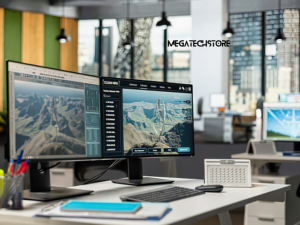
A compact computer can make a home office feel cleaner and more organised, but its small size does not automatically mean it will suit your work. Before choosing a Minisforum PC, you need to consider your applications, number of monitors, display resolution, network connection and peripheral requirements.
Model specifications vary across the Minisforum range. Some systems support several high-resolution displays, while others provide fewer display outputs or use USB-C ports with different capabilities. Checking the exact model specifications before purchasing can prevent compatibility problems and unnecessary adaptor costs.
This guide explains how to select a Minisforum PC that fits your home-office workload and physical workspace.
The right Minisforum PC should handle your normal workload comfortably. A person working in email, web browsers and documents has different requirements from someone editing video, creating complex graphics or running development software.
Match the Processor and Memory to Your Daily Applications
Start by listing the applications you regularly use and checking their recommended system requirements. Basic office work may run comfortably on a modest modern processor, while design programs, large spreadsheets, virtual machines and editing software can require more processing power and memory.
Multiple monitors do not always create a heavy workload on their own. However, running several applications across those displays can increase memory use. A browser with many open tabs, communication platforms, cloud software and large documents can quickly consume available RAM.
For general office multitasking, 16GB of memory is often a practical starting point. Heavier creative, technical or development workloads may benefit from 32GB or more. These are general guidelines, so your software requirements should guide the final decision.
Allow Capacity for Multitasking and Future Requirements
Choose a Minisforum PC that meets more than the minimum requirements of your current applications. This provides some capacity for software updates, larger files and changes in how you work.
The processor name alone does not provide a complete picture of performance. Its generation, core configuration, cooling system and power settings can all affect real-world results. Two mini PC models with similarly named processors may perform differently during prolonged workloads.
If you expect your requirements to grow, check whether the memory and storage can be upgraded. Some models use replaceable components, while others have memory attached to the mainboard. Confirming this before purchasing can help you avoid replacing the entire computer when you need more capacity.
Check How Many Monitors the Minisforum PC Supports
A Minisforum PC may include several video-capable ports, but that does not necessarily mean every port can operate a monitor simultaneously. The supported number of displays depends on the processor, graphics hardware, port specifications and system design.
Compare HDMI, DisplayPort and USB-C Video Connections
HDMI is common on office monitors and televisions, while DisplayPort is widely used on computer monitors. USB-C can also carry video, but only when the port supports DisplayPort Alt Mode, USB4 or another compatible video standard.
Do not assume that every USB-C port provides a display signal. Some ports support data or charging only. The exact product specification should state whether video output is available and identify the resolutions supported by each connection.
Before selecting a Minisforum PC, compare its outputs with the inputs on your existing monitors. Direct connections are usually simpler than relying on several adaptors, particularly when setting up a permanent home office.
Confirm Supported Resolutions and Refresh Rates
The number of supported monitors is only part of the comparison. You should also confirm whether the Minisforum PC can run each display at its intended resolution and refresh rate.
A system might support multiple displays but offer different maximum specifications depending on which ports are used together. The result may also vary when using adaptors, docks or daisy-chained monitors.
For office work, resolution usually has a greater practical effect than a very high refresh rate. Higher resolutions provide more usable workspace and sharper text, but they also place additional demand on the graphics hardware. Gaming, animation and specialised visual work may require closer attention to both resolution and refresh rate.
Plan the Right Multiple-Monitor Connection Setup
Planning the full connection path before buying a Minisforum PC can save time and reduce cable clutter. Write down the input ports available on each monitor and match them with the computer’s supported outputs.
Connect Displays Directly Without Unnecessary Adaptors
A direct HDMI-to-HDMI or DisplayPort-to-DisplayPort connection is generally the simplest option. When the ports do not match, use an adaptor or cable rated for the required resolution and refresh rate.
Not every cable carrying the same connector type provides identical performance. An older HDMI cable or limited USB-C cable may prevent a monitor from reaching its intended resolution or refresh rate.
You should also consider the location of the ports. Front connections are convenient for temporary devices, while rear ports usually make permanent display and power cables easier to organise. Photos of the computer can help with planning, but the official port specification remains the more reliable reference.
Understand When a Docking Station May Be Required
A docking station can add convenient access to displays, storage, Ethernet and USB devices. It may be useful when the Minisforum PC has enough computing power but lacks the physical connections needed for your setup.
The dock must be compatible with the computer’s USB-C or USB4 implementation. A basic USB-C connection does not guarantee support for multiple monitors, charging or every feature offered by the dock.
DisplayLink docks use software-based display technology and can add screens to compatible systems, but they may not suit gaming, colour-critical work or other graphics-intensive tasks. For the most reliable result, use the computer’s native display outputs wherever possible and treat a dock as a planned part of the system rather than an automatic solution.
Review USB4, Networking and Peripheral Connections
A home-office computer often needs to support much more than monitors. Before choosing a Minisforum PC, account for your keyboard, mouse, webcam, headset, printer, external drives and any specialist equipment.
Check Ethernet, Wi-Fi and Bluetooth Capabilities
Ethernet can provide a stable connection for video meetings, large file transfers and cloud-based work, particularly when the computer is close to the router or a wired network point. Some Minisforum models include faster Ethernet connections, but your router, cabling and internet service must also support those speeds for you to benefit.
Wi-Fi performance depends on the wireless standard, antenna design, router and distance from the access point. Walls, neighbouring networks and the physical position of the mini PC can affect the connection.
Bluetooth is useful for wireless keyboards, mice and headsets. Check the requirements of any older or specialist devices rather than assuming that every accessory will connect without additional hardware.
Allow Enough Ports for Office Equipment and External Storage
Count the number and type of USB devices you use at the same time. Include equipment that is easy to overlook, such as a webcam, microphone, card reader, printer and backup drive.
USB4 can support fast data transfer and, on compatible models, display output or an external graphics connection. However, the available features vary by device. Read the detailed specification for the exact Minisforum PC rather than relying only on the USB4 name.
If you need a hub, choose one with suitable bandwidth and its own power supply where appropriate. Connecting several high-demand devices through an unpowered hub can lead to unstable operation or reduced performance.
Choose Between Barebones and Preconfigured Models
Minisforum systems may be sold as barebones units or ready-to-use configurations. Understanding the difference is essential because a low advertised price may not include everything needed to operate the computer.
Decide Whether You Need a Ready-to-Use Pre-Built PC
A pre build PC configuration normally includes memory and storage, and it may include a Windows licence. Confirm the complete specification because inclusions can vary between listings and sellers.
A configured Minisforum PC is generally more convenient for someone who wants to connect monitors and begin working without installing internal components. It also reduces the need to research compatibility between individual computer parts.
Check whether the operating system is installed and activated, what memory configuration is supplied and which SSD model or capacity is included. It is also worth confirming whether the Australian power cable or adaptor is supplied.
Check Compatible Mini PC Parts Before Building Your Own System
A barebones mini PC usually requires the buyer to supply compatible RAM and storage. The processor and mainboard are normally included, but the operating system may need to be purchased and installed separately.
Before ordering mini PC parts, check the supported memory type, maximum capacity, number of memory slots, SSD format and available storage interfaces. Laptop-style SO-DIMM memory is common in compact systems, although this should never be assumed for every model.
Also check whether opening the enclosure or installing computer parts affects any warranty conditions. Following the manufacturer’s installation instructions can help prevent damage to connectors, cooling components and internal cables.
Plan for Cooling, Noise and Limited Desk Space
A Minisforum PC occupies much less space than a conventional desktop tower, but it still requires airflow. Poor placement can increase fan noise and reduce the system’s ability to manage heat during sustained workloads.
Position the Mini PC for Reliable Ventilation
Avoid placing the computer inside a tightly enclosed cabinet or pressing its ventilation openings against a wall. Leave enough clearance for air to enter and warm air to escape.
Fan noise can vary according to the workload and performance mode. Basic office applications may place little demand on the cooling system, while video rendering, gaming or other extended tasks can cause the fans to run faster.
Independent reviews can provide useful information about noise and temperature, but check that the review covers the exact configuration you intend to buy. Processor settings and internal components can influence results.
Use VESA Mounting to Create a Cleaner Workspace
Some Minisforum PC models support VESA mounting behind a compatible monitor. This can free desk space and keep the computer out of sight, although it may make ports and the power button less accessible.
Check whether the required mounting bracket is included and whether your monitor’s mounting points are available. A monitor arm may already occupy the VESA connection, so both items cannot necessarily use the same mounting position without an additional solution.
Cable length also matters. Plan how power, display, network and peripheral cables will reach the mounted computer without being stretched or obstructing monitor movement.
Compare Australian Sellers Before You Buy
Price is important, but it should not be the only factor when selecting a Minisforum PC. Australian buyers should also compare warranty handling, returns, delivery, technical support and the precise configuration supplied.
Check Local Warranty Coverage, Delivery and Technical Support
A listing that mentions Minisforum Australia may refer to an Australian storefront, a local reseller or simply a product available for delivery to Australia. Confirm who issues the invoice, where returns are sent and which business is responsible for warranty support.
Check whether the advertised price includes GST and whether the product is already in Australia or shipped internationally. Overseas delivery can affect arrival times, return costs and the process for resolving a fault.
Read the written warranty and returns policy before purchasing. Keep the invoice, product serial number and original packaging, as these may be required if you need assistance.
Questions to Ask a Tech Store About Parts and Compatibility
When contacting a tech store, provide the exact number and models of your monitors, their resolutions, available inputs and the applications you use. Ask the seller to confirm whether the proposed Minisforum PC supports the complete display setup at the required settings.
You should also confirm the included RAM, SSD, operating system, wireless capabilities, power adaptor and upgrade options. If you are purchasing a barebones system, ask whether your chosen components have been checked for compatibility.
Mega Tech Store can assist Australian buyers comparing Minisforum models, compatible computer parts and complete configurations. Before ordering, request confirmation of the exact model specifications and supplied components so your home-office setup works as intended.
A carefully selected Minisforum PC can provide a capable, space-efficient workstation. By checking your workload, monitor connections, networking, upgrade options and seller support before buying, you can build a home office that meets your current needs without unnecessary complexity.